Single Sign-On (SSO)
Abstra supports Single Sign-On with Google and Microsoft. Your team and the users of your applications sign in with their company account, and Abstra never creates or stores passwords.
Where users sign in
Abstra has two entry points, and both offer the same sign-in methods:
- Console (cloud.abstra.io): where your team builds, publishes and manages projects.
- Applications: the published forms and pages your end users access.
Sign-in methods
| Method | Accounts |
|---|---|
| Continue with Google | Google accounts, including Google Workspace |
| Continue with Microsoft | Microsoft Entra ID (Microsoft 365) accounts |
| Email code | A one-time code sent to the user's email |
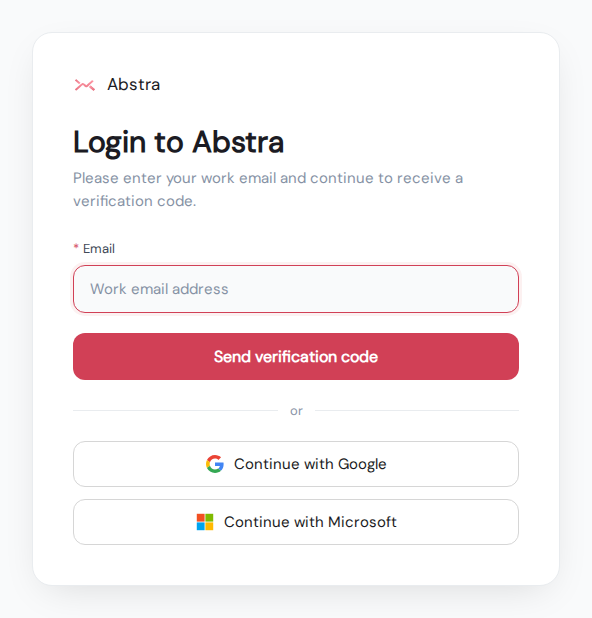
Users are identified by their email address. Someone who signs in with Google and later with an email code using the same address reaches the same account, with the same permissions.
How it works
- The user clicks Continue with Google or Continue with Microsoft.
- They are redirected to the Google or Microsoft sign-in page and authenticate there. Multi-factor authentication, conditional access and any other policy from your tenant keep applying.
- The provider sends the user back to Abstra, which validates the response and identifies the user by email.
- The user lands in the Console or in the application they were trying to open.
In most cases there is nothing to set up in your Google Workspace or Microsoft Entra tenant. If your company requires admin approval for third-party apps, your administrator approves the Abstra app once.
Configuring SSO for your organization
Organization admins control how people sign in on the Security page of the Console (open your organization and go to Configuration → Security). Settings for applications and for the Console are independent.
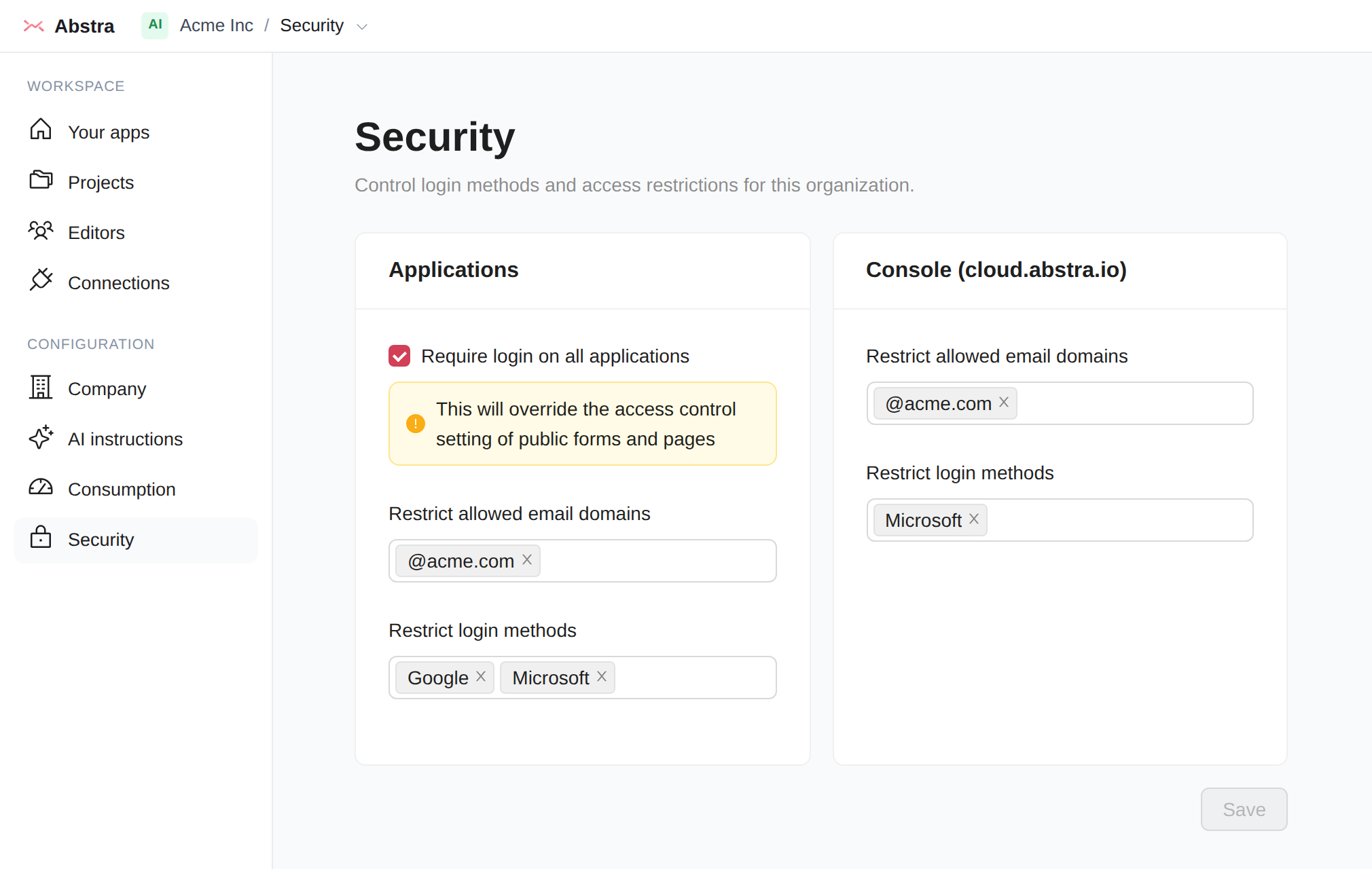
Applications
- Require login on all applications: every form and page of the organization requires sign-in, overriding the access setting of public forms and pages.
- Restrict allowed email domains: only emails that match the list (for example
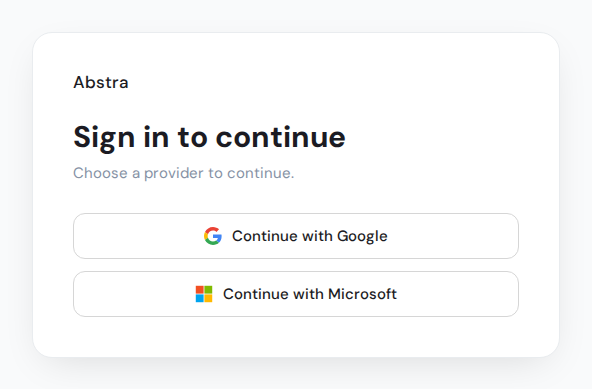
@acme.com) can sign in to your applications, whatever the sign-in method. Forms and pages set as public stay open to anyone unless Require login on all applications is on. - Restrict login methods: choose which methods your applications offer. Leave it empty to allow all of them. Selecting only Google and Microsoft removes the email code option from the login screen:
Console
- Restrict allowed email domains: only emails that match the list can be invited to the organization. Existing members are not affected.
- Restrict login methods: members who signed in with a method that is not on the list cannot access the organization until they sign in again with an allowed one. If your own login method is not on the list, the page warns you before saving.
Combine the settings to enforce SSO: for example, restrict the Console to Microsoft and your applications to Google and Microsoft with your company domain.
Sessions and offboarding
- Console with SSO: while the Console is in use, the session is renewed with Google or Microsoft every 15 minutes. If the account is disabled or its access revoked in your identity provider, the renewal fails and the user is signed out of the Console. A renewable session lasts up to 14 days, after which the user signs in again.
- Console with email code: the session lasts up to 7 days.
- Project editor: an editor that is already open keeps its own session for up to 7 days, which is not revalidated with the identity provider. Removing the person from the organization stops it from being renewed.
- Applications: after sign-in, the session lasts up to 7 days and is not revalidated with the provider during that time. Access is still checked whenever the user opens a form or page, so removing their access, or an allowed-domain list that no longer matches their email, blocks them from that point on.
- Removing someone from the organization removes their Console access. Application access granted to them individually or by email domain is managed in each project's access control and must be removed there.
- Restricting login methods for applications only refuses new sign-ins: sessions opened before the change last until they expire.
Security details
- OpenID Connect Authorization Code flow with PKCE (S256). Each sign-in attempt uses a random, single-use
stateandnoncethat expire after 10 minutes. - Abstra validates the ID token returned by the provider: RS256 signature against the provider's published keys, issuer, audience, expiration and nonce.
- Google accounts must have a verified email. Microsoft accounts use the email from the tenant directory.
- Requested scopes:
openid,emailandprofile, plusoffline_accesson the Console with Microsoft, used to renew the session. Abstra does not request access to the mailbox, files, calendar or any other data from the account. - The provider refresh token used to renew Console sessions never reaches the browser: it is stored encrypted on Abstra's servers. The browser holds a short-lived Abstra token and a secure,
httpOnlysession cookie.
Other identity providers
Abstra currently supports Google and Microsoft. SAML 2.0, SCIM provisioning and other identity providers (such as Okta) are not supported. Contact us if you need them.